🧱 Architecture (Windows)
Browser
   ↓
Pulse.Web (ASP.NET / Blazor / Razor)
   ↓ HTTP(S)
Pulse.API (ASP.NET Core)
   ↓ EF Core
MySQL Server
You can run this with IIS or standalone using Kestrel. I’ll show both, but IIS is the most “Windows-native”.
1️⃣ Prerequisites (Install First)
✅ Windows Requirements
- Windows 10 / 11 / Server 2019 / 2022
- Admin access
✅ .NET Runtime (REQUIRED)
Pulse does not need the SDK in production — only the runtime.
Install:
- .NET 8 or 9 ASP.NET Core Hosting Bundle
👉 https://dotnet.microsoft.com/download
This installs:
- ASP.NET runtime
- IIS integration
dotnet.exeruntime
Verify:
dotnet --list-runtimes
2️⃣ Install MySQL Server (Windows)


Step 1: Download
👉 https://dev.mysql.com/downloads/installer/
Choose:
- MySQL Installer (Community)
Step 2: Install Options
Select:
- MySQL Server
- MySQL Workbench
- MySQL Shell (optional)
Step 3: Configuration
- Auth method: Use Legacy Authentication (recommended for EF Core)
- Port:
3306 - Root password: SAVE THIS
- Service Name:
MySQL80 - Startup: Automatic
Verify:
services.msc
Confirm MySQL80 is running.
3️⃣ Create Pulse Database
Open MySQL Workbench → connect as root.
CREATE DATABASE pulse
  CHARACTER SET utf8mb4
  COLLATE utf8mb4_unicode_ci;

CREATE USER 'pulse'@'localhost'
IDENTIFIED BY 'StrongPasswordHere';

GRANT ALL PRIVILEGES ON pulse.* TO 'pulse'@'localhost';
FLUSH PRIVILEGES;
4️⃣ Pulse.API Setup (Windows)
📁 Recommended Folder
C:\Pulse\
 ├── api\
 │   └── pulse.Api.dll
 ├── web\
 └── logs\
🔧 appsettings.json (Pulse.API)
{
  "ConnectionStrings": {
    "PulseDb": "Server=localhost;Port=3306;Database=pulse;User=pulse;Password=StrongPasswordHere;"
  },
  "Kestrel": {
    "Endpoints": {
      "Http": {
        "Url": "http://localhost:5001"
      }
    }
  }
}
▶ Test API (Manual)
cd C:\Pulse\api
dotnet pulse.Api.dll
Test:
http://localhost:5001/health
5️⃣ Apply Database Migrations (IMPORTANT)
Pulse must create tables before running fully.
If migrations are embedded (recommended):
dotnet pulse.Api.dll --migrate
Or if you ship EF tools internally:
dotnet ef database update
Verify tables exist in MySQL Workbench.
6️⃣ Pulse.Web Setup
🔧 appsettings.json (Pulse.Web)
{
  "PulseApi": {
    "BaseUrl": "http://localhost:5001"
  }
}
▶ Test Web
cd C:\Pulse\web
dotnet pulse.Web.dll
Browse:
http://localhost:5000
7️⃣ IIS Deployment (Recommended)
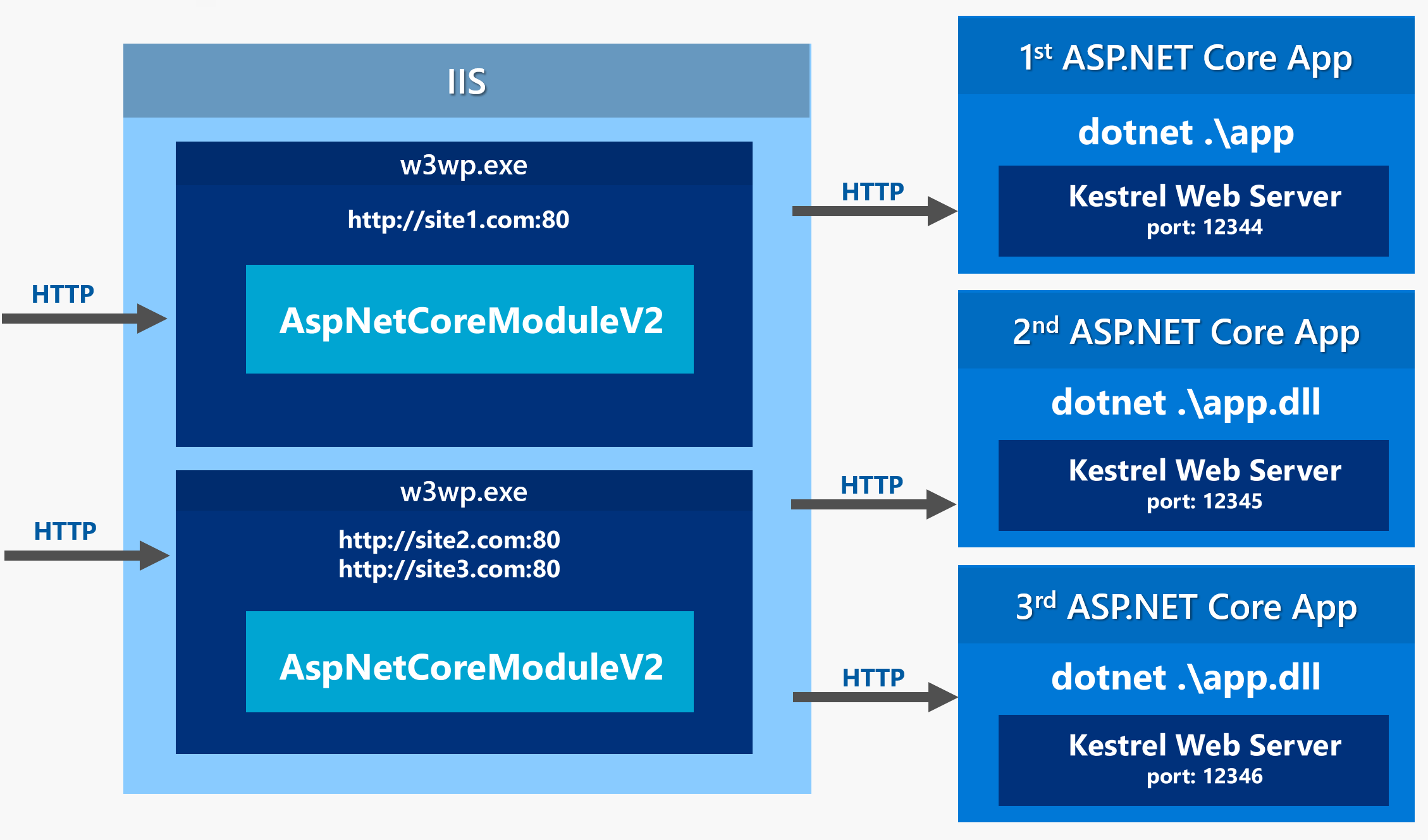


Step 1: Enable IIS
optionalfeatures.exe
Enable:
- IIS
- ASP.NET 4.8
- .NET Extensibility
- HTTP Redirect
Step 2: Application Pools
Create two pools:
Pulse.APIPulse.Web
Settings:
- .NET CLR: No Managed Code
- Identity: ApplicationPoolIdentity
Step 3: IIS Sites
Pulse.API
- Path:
C:\Pulse\api - Port:
5001 - App Pool:
Pulse.API
Pulse.Web
- Path:
C:\Pulse\web - Port:
80 - App Pool:
Pulse.Web
web.config (Auto-Generated)
Make sure this exists in both folders:
<aspNetCore processPath="dotnet"
            arguments="pulse.Api.dll"
            hostingModel="InProcess" />
8️⃣ Firewall Rules
New-NetFirewallRule -DisplayName "Pulse Web" -Direction Inbound -Protocol TCP -LocalPort 80 -Action Allow
New-NetFirewallRule -DisplayName "Pulse API" -Direction Inbound -Protocol TCP -LocalPort 5001 -Action Allow
9️⃣ Windows Services (Optional but Pro)
Instead of IIS, you can run both as Windows Services:
sc create PulseAPI binPath= "dotnet C:\Pulse\api\pulse.Api.dll"
sc create PulseWeb binPath= "dotnet C:\Pulse\web\pulse.Web.dll"
Then:
sc start PulseAPI
sc start PulseWeb
🔐 Common Gotchas (Important)
✅ MySQL uses utf8mb4
✅ Use Legacy Authentication
✅ AddDbContext must use UseMySql()
✅ Migrations must run once
✅ API must start before Web
✅ IIS App Pool = No Managed Code
🚀 Recommended Production Ports
| Component | Port |
|---|---|
| Pulse.Web | 80 / 443 |
| Pulse.API | 5001 (internal) |
| MySQL | 3306 (local only) |
🔚 Final Result
- Pulse.Web → IIS → Browser
- Pulse.API → IIS/Kestrel
- MySQL → Windows Service
- Clean, stable, Windows-native setup